From First Prompt to Production‑Ready Visuals
TL;DR:
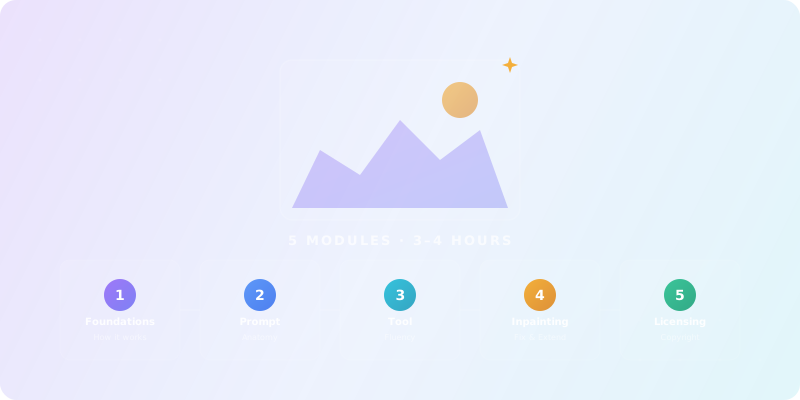
This course teaches you how modern AI image models actually work, how to write prompts that are precise instead of lucky, and how to move from “cool experiments” to images you can safely use in real projects. You'll practice with multiple tools, learn the anatomy of a strong visual prompt, understand negative prompts, aspect ratios, styles, and finish with practical workflows for inpainting, outpainting, and basic licensing hygiene.
This course is for designers, marketers, founders, and content creators who want more control over image outputs. It's also for developers and tinkerers who use AI art tools but don't fully understand why results vary, and anyone who needs to create hero images, illustrations, product visuals, or concept art quickly.
No prior ML knowledge required. Basic familiarity with any AI chat tool is helpful but not mandatory.
Designers & Creators
Marketers & Founders
Developers & Tinkerers
How Diffusion Models Work
Understand the noise-to-image process so you stop expecting magic and start giving usable constraints.
Prompt Anatomy
Structure prompts with subject, style, composition, lighting, color, detail, and aspect ratio.
Negative Prompts & Control
Tell the model what to avoid — fix anatomy, remove artifacts, and control quality.
Tool Fluency
Adapt prompts across hosted art tools, integrated chat editors, brand-safe suites, and open/local UIs.
Inpainting & Outpainting
Fix, replace, or extend parts of an image with minimal visible seams.
Licensing & Copyright
Navigate ownership, training data ethics, and commercial use with safer patterns.
Academy review: October 5, 2026
Model names and capabilities change frequently. We use provider families (GPT, Claude, Gemini) in Academy copy — verify current tiers on provider sites or our LLM Model Family Guide.
For live model picks, cross-check with our Multimodal AI guide.
Models improve fast; legal and brand risk does not. Refresh emphasizes prompt anatomy, client IP, and when to use Firefly-class licensed tools vs. open weights.
What we updated for 2026
Still true in 2026
Compare live tools anytime in our tool explorer.
This course: AI image generation
Prompting, styles, and production hygiene for visual AI.
Learn first (we do not repeat this here)
Go deeper after this course
October 2026 update: choose the workflow, then the model
Image generation is no longer one category. Hosted art tools optimize for fast aesthetics, GPT-Image-style tools optimize for natural-language edits, Firefly-style suites optimize for brand and commercial workflows, and open/local pipelines optimize for control, privacy, and custom styles.
Before using outputs commercially, check the current terms and model notes from the provider: OpenAI Images, Midjourney versions, Adobe Firefly, and FLUX.2.
How diffusion works — 2026 depth note
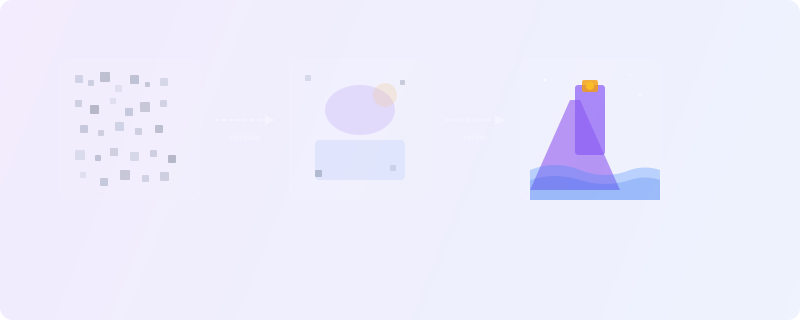
Noise → image — great for exploration, weak on exact text and fine detail without iteration.
Modern text-to-image tools are built on diffusion models. They are trained on huge collections of image–text pairs, learn statistical patterns between language and visual features, and generate images by starting from pure noise and iteratively “de-noising” toward something that matches your prompt.
Key insight
+ Highly aesthetic outputs; great for concept art and mood; simple chat UI
− Less direct control over internals; hosted; no raw weights
+ Strong integration into chat and editing UIs; easy inpainting; good at following natural language
− Parameter control more limited; dependent on provider UI
+ Strong for brand workflows, Adobe-native editing, and commercial policy clarity
− Less open-ended; best value when you already work in a design suite
+ Open-weight options; can run locally; deeply configurable; supports custom models
− More setup; more knobs to turn; easier to break things
Use hosted tools for fast ideation, integrated editors for precise revisions, brand-safe suites for client-ready production, and open/local setups for privacy, custom models, and advanced pipelines. The best workflow often combines more than one category.
Prompt anatomy — 2026 depth note
Subject, style, composition, lighting, aspect — structured beats lottery prompts.
The core of this course: learn how to structure prompts so that different tools behave more predictably. Break every prompt into explicit components:
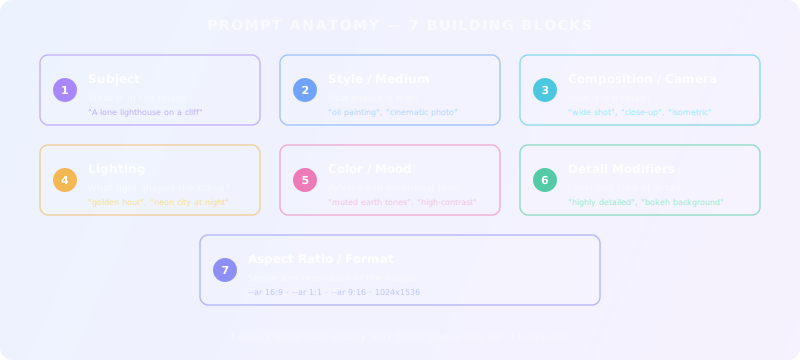
1. Subject
"A lone lighthouse on a cliff above a stormy sea"
2. Style / Medium
"oil painting", "cinematic photograph", "flat vector"
3. Composition / Camera
"wide shot", "close-up portrait", "isometric"
4. Lighting
"soft morning light", "golden hour backlight", "neon city"
5. Color / Mood
"muted earth tones", "high-contrast neon", "monochrome"
6. Detail modifiers
"highly detailed", "minimalist", "volumetric fog"
7. Aspect ratio
--ar 16:9, --ar 1:1, 1024×1536
[Subject] in [environment], [key actions or context].

Style: [photorealistic / illustration / 3D render / flat vector / watercolor / etc.]
Composition: [close-up / medium shot / wide shot / isometric / top-down], [camera angle if relevant]
Lighting: [type of light and time of day]
Color & mood: [palette and emotional tone]
Detail: [level of detail; optional extra effects]
Format: [aspect ratio or resolution hint]

Example:
A lone lighthouse on a steep cliff during a violent storm, waves crashing below.

Style: cinematic photograph, long exposure
Composition: wide shot from sea level, lighthouse off-center (rule of thirds)
Lighting: dramatic lightning in the background, overcast sky, subtle light from lighthouse
Color & mood: desaturated blues and grays, moody, tense atmosphere
Detail: highly detailed water spray, sharp rocks, motion blur on waves
Format: 16:9 landscapeUsing style words responsibly means referencing genres, eras, and aesthetics (“in the style of 80s anime”, “mid-century modern poster”) rather than naming living artists. Combining multiple influences works best when you keep it focused: fewer, clearer style cues usually produce better results than a long list of buzzwords.
Avoid “style soup”
Your main prompt says “what you want.” A negative prompt says “what you explicitly don't want.” Common categories:
Anatomy issues
extra limbs, extra fingers, bad anatomy, malformed hands, distorted face
Image quality
blurry, low resolution, noisy, jpeg artifacts
Unwanted text
watermark, text, logo, signature
Style exclusions
cartoon, anime, 3D render (if you want a clean photo)
Less is more
Negative prompt:
deformed, bad anatomy, disfigured, poorly drawn face, poorly drawn hands,
extra limbs, extra fingers, blurry, low resolution, watermark, text, logoTool landscape — 2026 depth note
Midjourney, Firefly, Ideogram, GPT-image class tools differ on license and control.
The goal of this module is tool fluency: taking the same mental model of a prompt and adapting it to different UIs and parameter sets. For each style of tool, understand:
How you enter prompts
Chat-style hosted tools vs. form fields in open UIs vs. integrated editors in GPT-Image or Firefly-style suites
How you set aspect ratio
--ar flags, explicit width×height, or dropdown menus
How you apply negative prompts
Explicit box, prompt syntax, or settings panel
How you iterate
Re-roll, variations, upscales, seeds, remix/edit modes
A seed is a number that initializes the random noise the model starts from. Same seed + same prompt + same settings = same (or very similar) image. This matters when you want to:
Trade-off
A practical pattern many professionals use:
Use a hosted art tool, GPT-Image-style editor, or Firefly-style suite to quickly explore visual directions and discover a look.
Recreate successful prompts in an open/local setup for privacy, custom models, inpainting/outpainting, repeatable batches, and fine-tuning.
Based on patterns from thousands of AI image generation users — avoid these from day one.
Prompt stuffing
Adding 50+ keywords hoping more = better. Models have attention limits — after ~75 tokens, later words get ignored. Keep prompts focused.
Ignoring aspect ratio
Generating square images then cropping. Set the right aspect ratio from the start — it changes composition.
Re-rolling instead of refining
Generating 100 images hoping for a lucky one. Instead: analyze what's wrong, adjust one prompt element, re-generate with a seed.
Expecting text rendering
Models are better at text than they used to be, but logos, long copy, and exact typography still fail often. Add final text in Figma, Canva, or your design app when accuracy matters.
The 80/20 rule of AI images
Use this table to pick the right tool for your specific task. Updated for current-generation models.
| Capability | Hosted art tools | GPT-Image-style editors | Open/local pipelines |
|---|---|---|---|
| Aesthetic quality | Excellent — best default aesthetics | Very good — natural, clean | Good — depends on model/LoRA |
| Prompt following | Good — interprets loosely | Excellent — very literal | Good — highly configurable |
| Text in images | Improving — still verify exact copy | Strongest for short, literal text | Model-dependent; newer FLUX-style models are stronger |
| Inpainting | Basic (vary region) | Good in integrated editors | Excellent with ComfyUI/A1111-style tools |
| Local/private use | No — cloud only | No — cloud only | Yes — runs on your GPU |
| Custom models | No | No | Yes — LoRAs, fine-tunes |
| Best for | Concept art, mood boards, marketing visuals | Text-heavy designs, precise scenes, ChatGPT-native edits | Full control, batch work, custom styles, privacy |
Treat the table as a category guide, not a product review
When text prompts alone aren't enough — these techniques give you precise spatial control.
Image-to-Image (img2img)
Feed an existing image as a starting point instead of pure noise. The model transforms it based on your prompt while keeping the overall structure.
Use cases: Style transfer (photo → illustration), refining AI outputs, turning sketches into polished images.
ControlNet
Guide generation with structural inputs: edge maps, depth maps, pose skeletons, or segmentation masks. The model follows the structure while applying your style prompt.
Use cases: Matching exact poses, preserving architecture, consistent character design, product photography angles.
When to use these
Editing workflows — 2026 depth note
Inpaint/outpaint extend assets — humans still own final pixels and accessibility.
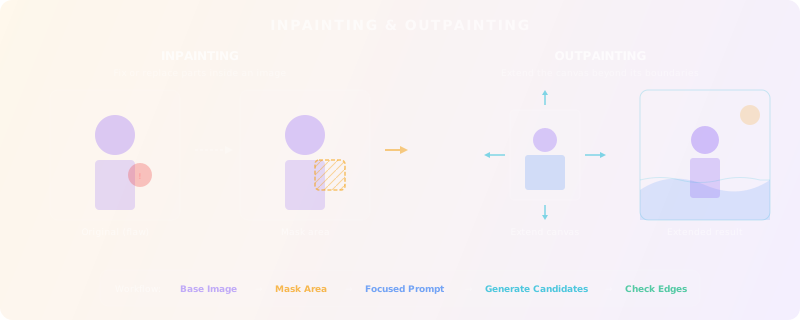
Remove, replace, or fix parts inside an existing image. Fix hands or faces, change clothing, adjust background elements, remove unwanted objects.
Extend the canvas beyond its original boundaries. Turn a square image into a cinematic wide shot. Add sky, foreground, or environment around a subject.
Both use the same diffusion process, but with masks that tell the model where to regenerate. Think of it as AI-powered image editing, not generation from scratch.
Either AI-generated or a photo (respecting policies and rights).
Use a brush to cover the region to remove/replace. Optionally expand the mask slightly for smoother blending.
Be specific about what should appear and how it should match the rest of the image.
Pick the one that blends best; re-run with adjusted prompts if needed.
Watch for mismatched lighting, perspective errors, or repeated patterns.
We are editing only the masked area of this image.

Goal: [what should change, in plain language]
Keep: [what must remain consistent – perspective, lighting, style, color grading]
Avoid: [what would break the illusion – duplicate limbs, sharp edges, mismatched shadows]

Example:
Goal: Replace the cluttered background with a soft, blurred office interior.
Keep: Subject's pose, lighting direction (from left), warm color balance, shallow depth of field.
Avoid: Hard cut-out edges, extra people, visible text or logos in background.Add blank space in your tool (e.g., left and right for a banner).
Select the newly added empty region.
Reference the existing image: "continuation of the beach with soft waves, same lighting and time of day."
Extend in smaller steps if needed to keep control over consistency.
Rights & ethics — 2026 depth note
Training-data litigation continues — contracts and documentation matter more than model hype.
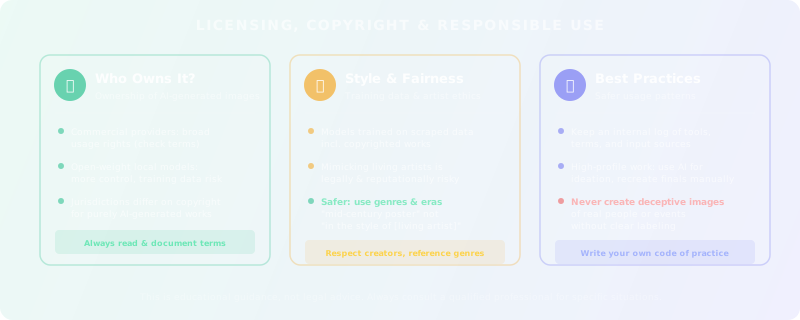
This is not legal advice — but you need enough grounding to avoid naive mistakes:
Always document
Some models are trained on large scraped datasets that include copyrighted works and artists' styles. This raises ongoing legal and ethical debates. Key points:
Track which tools you used, what rights their terms grant, and whether any human-authored content was used as input (e.g., client logos, stock photos).
Consider limiting AI use to ideation and reference, then recreating final assets manually or with licensed stock blended in.
Never use AI to create misleading “documentary” images of real people or events without clear labeling. That crosses into deepfake territory and can be illegal or harmful.
Capstone project — 2026 depth note
Deliver one mini brand kit: mood board → hero image → variants → license note.
To close the course, complete a small, realistic project that ties everything together.
Choose one concept (for example, “homepage hero image for a digital health startup” or “cover art for a productivity newsletter”) and:
By the end, you have a small but concrete portfolio piece and a repeatable workflow you can apply to future projects — without treating image generation as a mysterious black box.
No. Most exercises work with hosted tools, GPT-Image-style editors, Firefly-style suites, or web-based open-model UIs. Running models locally is optional and covered as an advanced path.
It depends on the tool's terms of service and your jurisdiction. Module 5 covers this in detail. The short answer: read the terms, keep a log, and for high-stakes work, consider using AI for ideation only and recreating finals manually.
Start with whatever you already have access to. The prompt anatomy principles from Module 2 work across all tools. Module 3 will help you understand the differences and when to switch.
The AI Tools for Designers guide covers the full design workflow (UI, brand systems, client work). This course goes deep on image generation specifically — prompt anatomy, negative prompts, inpainting, outpainting, and licensing.
Write better prompts across every AI tool — not just image generators.
Start LearningComplete this quiz to test your understanding of AI image generation concepts and best practices.
Loading quiz...
AI image models start from noise and de-noise toward your prompt — they approximate patterns, not understanding. Give them clear constraints, not vague hopes.
Structure every prompt with 7 building blocks (subject, style, composition, lighting, color/mood, detail, aspect ratio) and use targeted negative prompts. Predictability beats luck.
Use inpainting and outpainting to fix and extend images. For commercial work, always document tool terms and consider using AI for ideation only.
Know these before you go further.
Prompts referencing living artists or trademarked characters can create legally risky outputs.
What this means for you
Use original style descriptors; check platform terms and client contracts before commercial use.
Image models can produce policy-violating content from benign-looking prompts in edge cases.
What this means for you
Enable safety filters, log generations, and keep human review for public campaigns.
Synthetic faces pass as stock photography in ads and social proof.
What this means for you
Disclose AI-generated imagery where required; avoid fake testimonials or impersonation.
Uploading unreleased product shots to cloud generators may train or retain sensitive visuals.
What this means for you
Use enterprise tiers or local diffusion for confidential assets.
